Summary
Understanding the Insights Summary Tab
The Summary tab is the landing view of Insights. It gives you a quick pulse check on your project: how registration is trending, how healthy your registrant base is, and an AI-written recap of what's happening, all in one place. This guide covers the key panels you'll see and what each one tells you.
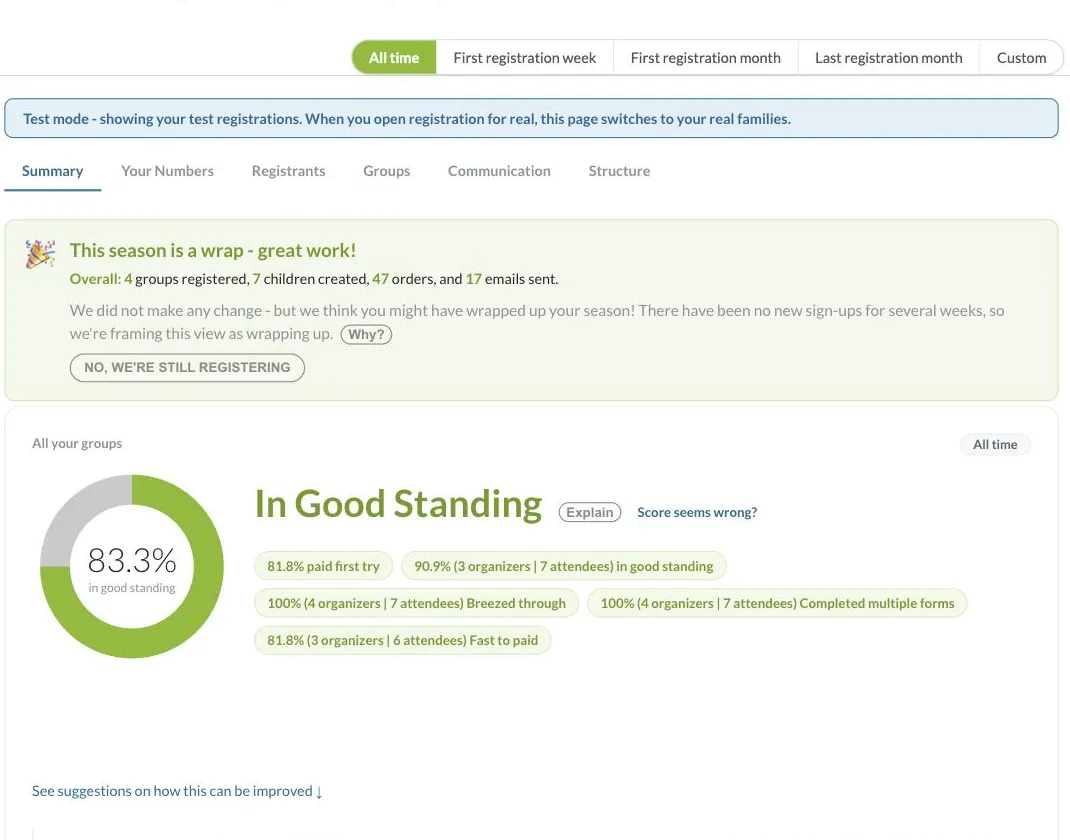
Filtering by Time Period
Every tab in Insights, including this one, shares the same date range selector at the top of the page: All time, First registration week, First registration month, Last registration month, and Custom. Switching this selector changes the data shown across the whole tab, so you can compare a specific week or month against your all-time numbers, or set a custom range with exact start and end dates. Insights also shows you when the data was last calculated, with a Recalculate link if you want to refresh it on demand.
Season Status Banner
At the top, Regpack automatically detects whether your season looks active or wrapped up, based on recent sign-up activity. If it flags your season as finished and that's not the case, click No, we're still registering to dismiss the message. Click Why? to see the reasoning behind the detection.
All Your Groups (Standing Score)
The donut chart shows the percentage of your groups that are In Good Standing, meaning they've moved smoothly through registration and payment. Below the chart you'll find supporting metrics such as paid first try, breezed through, completed multiple forms, and fast to paid. Clicking on any of the sections will let you navigate to user management with those users selected for further action.
- Click Explain to see exactly how the standing score is calculated and which registrants are pulling it down.
- Click Score seems wrong? if the number doesn't match your expectations.
AI Project Summary
The "How is the project doing?" panel is a plain-language, auto-generated recap of your registration activity, highlighting what's working and what needs attention. Use Regenerate AI Summary to refresh it with the latest data, See full summary for the complete write-up, or Ask what's going on? to dig deeper into a specific point.
Recommended Actions
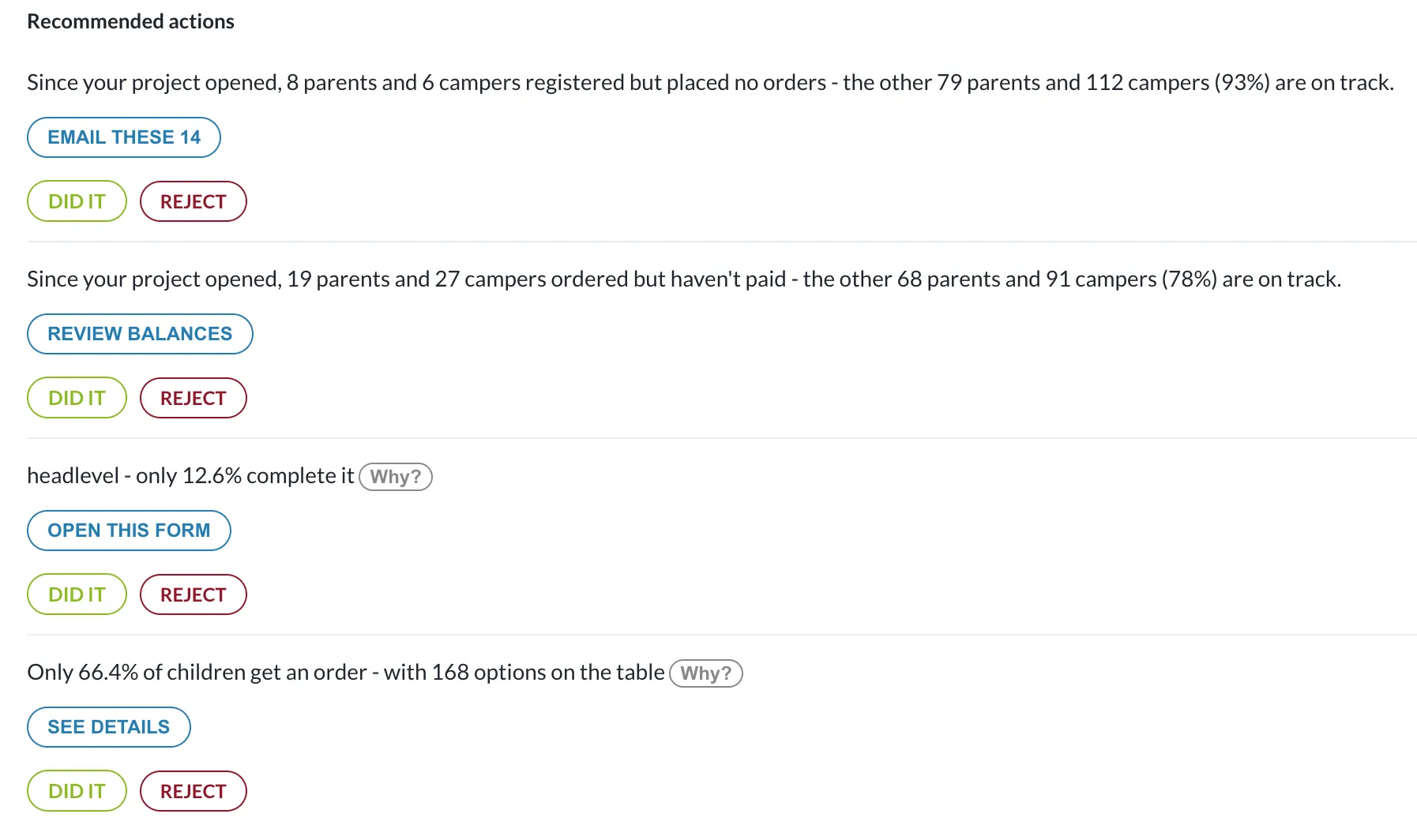
This section surfaces suggested next steps by comparing a flagged group of registrants against the rest of the project that's on track. Recommendation types vary by project; items include, for instance, an 'Email These' prompt for registrants who signed up but placed no order, a 'Review Balances' prompt for those who ordered but haven't paid, an 'Open This Form' prompt when a specific form has a low completion rate, and a 'See Details' prompt when overall order conversion is low. Many recommendations include a 'Why?' link explaining the reasoning behind the flagged issue. Once handled, mark a recommendation 'Did It', or 'Reject' it to remove it from the list if it doesn't apply.
If you have questions about your Summary tab, contact our support team at [email protected].