Groups
Understanding the Insights Groups Tab
The Groups tab shows how your registrants naturally break down by the fields that matter most in your project, such as grade level or other custom fields, without you having to build a report. This guide explains how the segmentation works and how to use it.
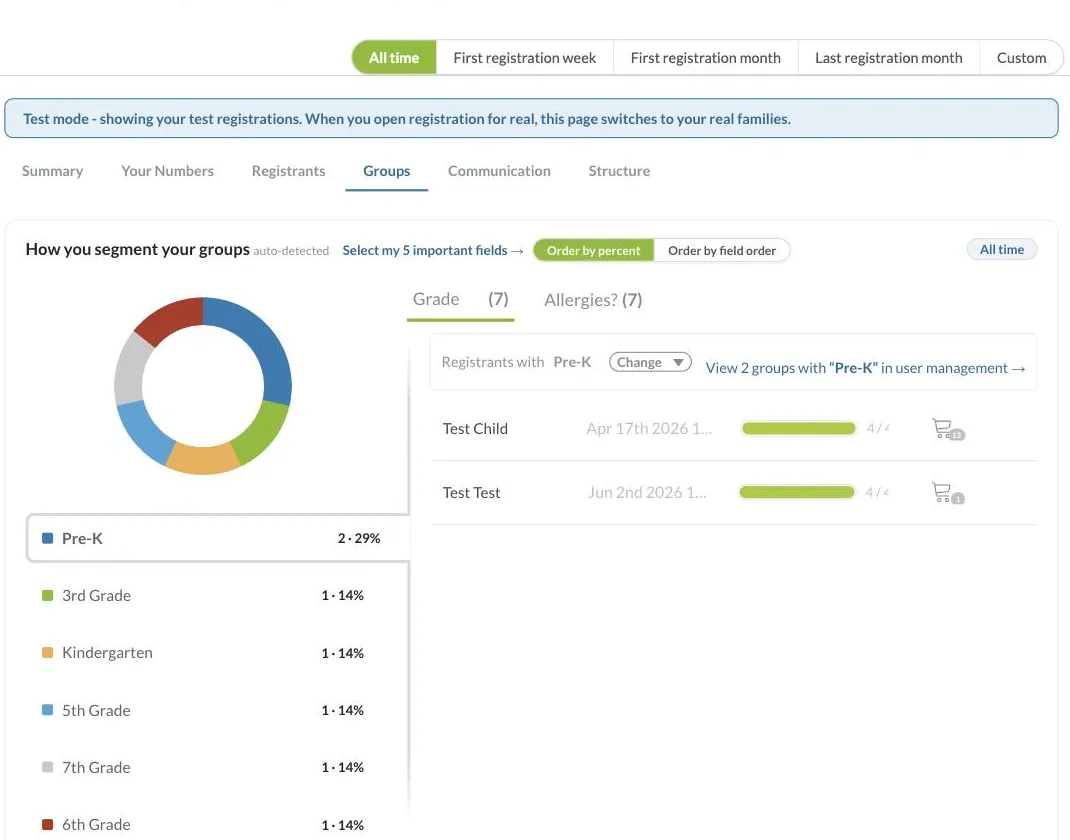
Filtering by Time Period
Every tab in Insights, including this one, shares the same date range selector at the top of the page: All time, First registration week, First registration month, Last registration month, and Custom. Switching this selector changes the data shown across the whole tab, so you can compare a specific week or month against your all-time numbers, or set a custom range with exact start and end dates. Insights also shows you when the data was last calculated, with a Recalculate link if you want to refresh it on demand.
Auto-Detected Segmentation
Regpack automatically identifies the fields your registrants are actually split by, based on real form answers, and displays them as separate tabs (for example, Grade or a custom question like Allergies?). If you'd rather choose the fields yourself, click Select my 5 important fields to customize them.
Chart View Options
Use Order by percent or Order by field order to change how the segment values are sorted in the donut chart and legend.
Drilling Into a Segment
Click any value in the legend (for example, a specific grade) to filter the list on the right to just the registrants with that answer. Use Change to switch to a different value, or click View [X] groups in user management to see the full filtered list in User Management.
If you have questions about how groups are segmented, contact our support team at [email protected].