Registrants
Understanding the Insights Registrants Tab
The Registrants tab breaks down your registrant base by standing, so you can quickly see who is progressing well and who needs attention. This guide covers how to read the chart and work with the registrant list.
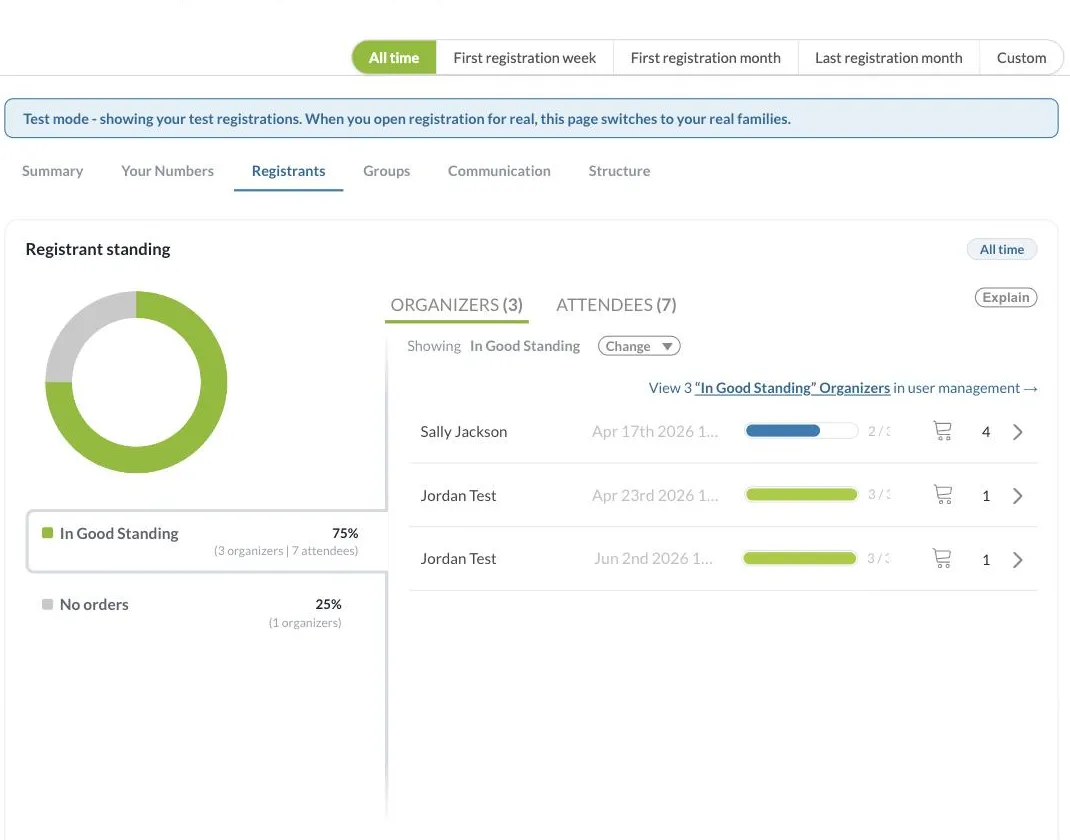
Filtering by Time Period
Every tab in Insights, including this one, shares the same date range selector at the top of the page: All time, First registration week, First registration month, Last registration month, and Custom. Switching this selector changes the data shown across the whole tab, so you can compare a specific week or month against your all-time numbers, or set a custom range with exact start and end dates. Insights also shows you when the data was last calculated, with a Recalculate link if you want to refresh it on demand.
Registrant Standing Chart
The donut chart splits your registrants into standing segments, such as In Good Standing or No orders. Use the Organizers / Attendees toggle above the list to switch which population the chart and list reflect.
Filtering by Segment
Click Change next to "Showing" to switch between standing segments (for example, from In Good Standing to No orders). The list below updates to show only registrants in the selected segment.
Registrant List
Each row shows a registrant's name, registration date, form completion progress, and order count. Click a row's arrow to open that registrant's full profile, or use View [segment] in user management to see the entire filtered group in User Management.
How Standing Is Calculated
Click Explain to see exactly how the standing percentage is calculated. Regpack grades each household once, under its most pressing status, so no one is double-counted, and shows you which registrants are currently pulling the score down.
If you have questions about registrant standing, contact our support team at [email protected].